
Advice and answers from the Rixbo Team
Click on Rixbo Apps, and a new window will appear.
Click on the Login with Email button, and a new window will appear.
Click on the Log in button, and a new navigation menu will appear.
Click on the More button from the bottom navigation menu, and a new window will appear.
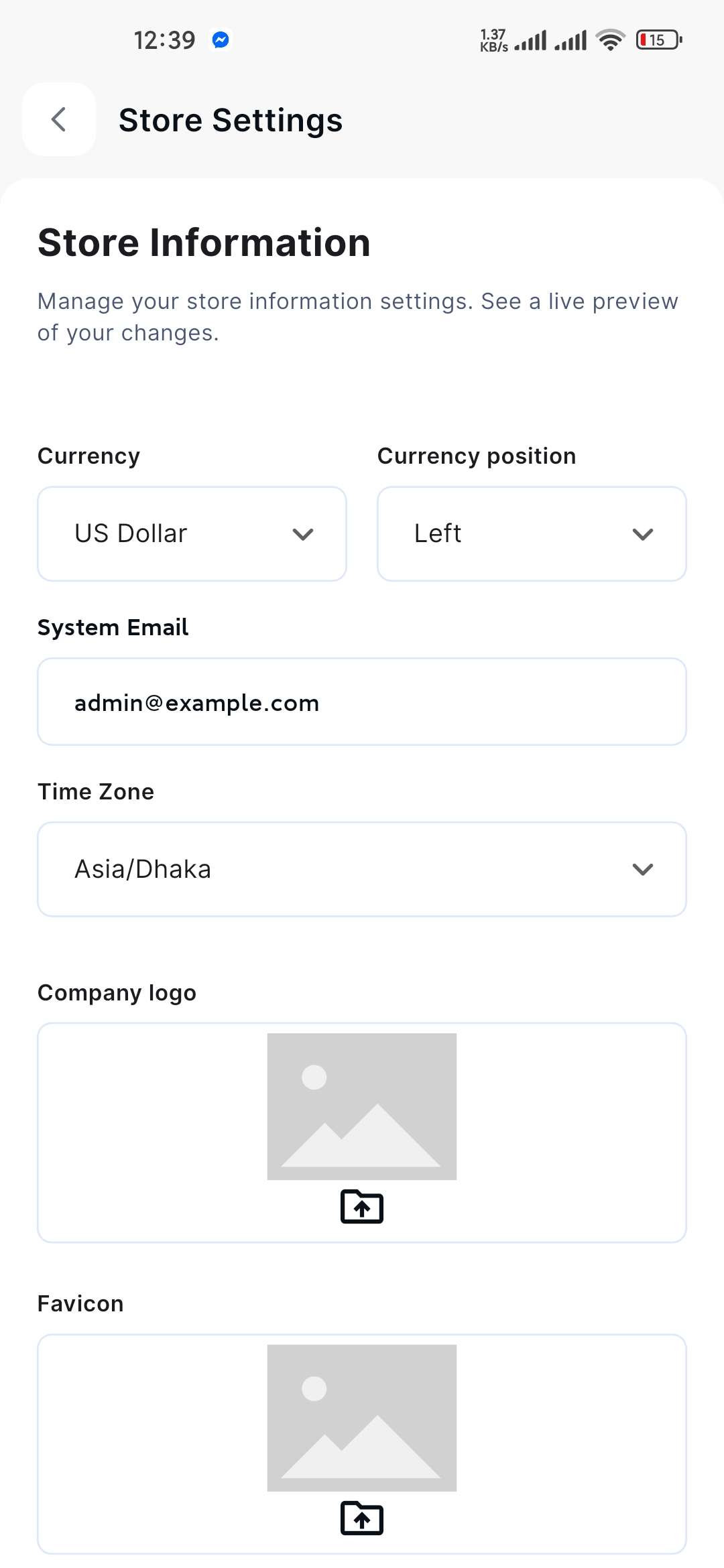
Click the Store Settings button, and an entry form will appear.
Fill in the following details:
Currency: Select a currency from the drop-down menu.
Currency Position: Select currency position from the drop-down menu.
System Email: Provide your desired system email in the respective field.
Time Zone: Select the time zone from the drop-down menu.
Company Logo: Click on the logo to upload the image.
Favicon: Click on the favicon image to upload your desired image.
Once all the fields are completed, click the Update button to set the store.