
Advice and answers from the Rixbo Team
Click on Rixbo Apps, and a new window will appear.
Click on the Login with Email button, and a new window will appear.
Click on the Log in button, and a new navigation menu will appear.
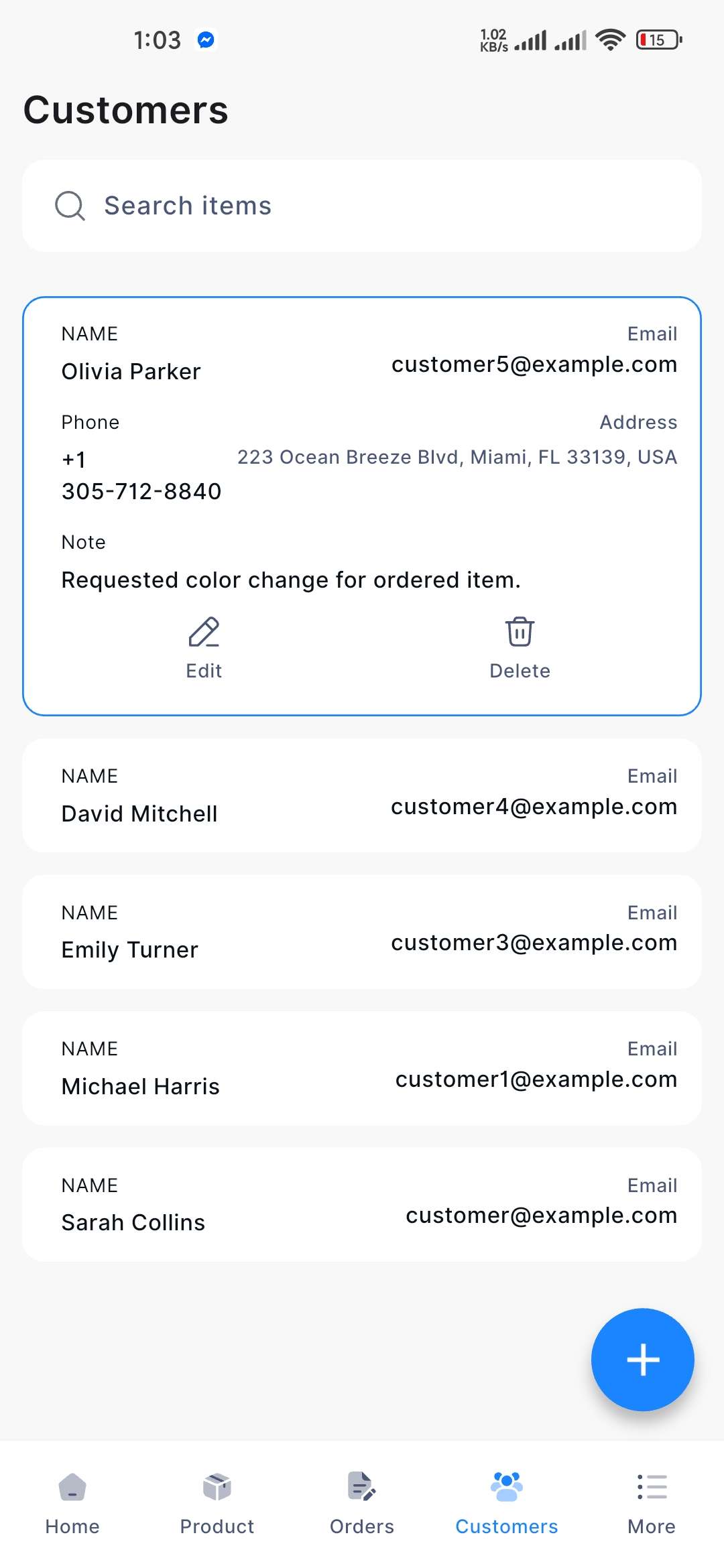
Click on the Customer button from the bottom navigation menu, and a new window will appear.
Click on the Customer Name button, and a new window will appear.
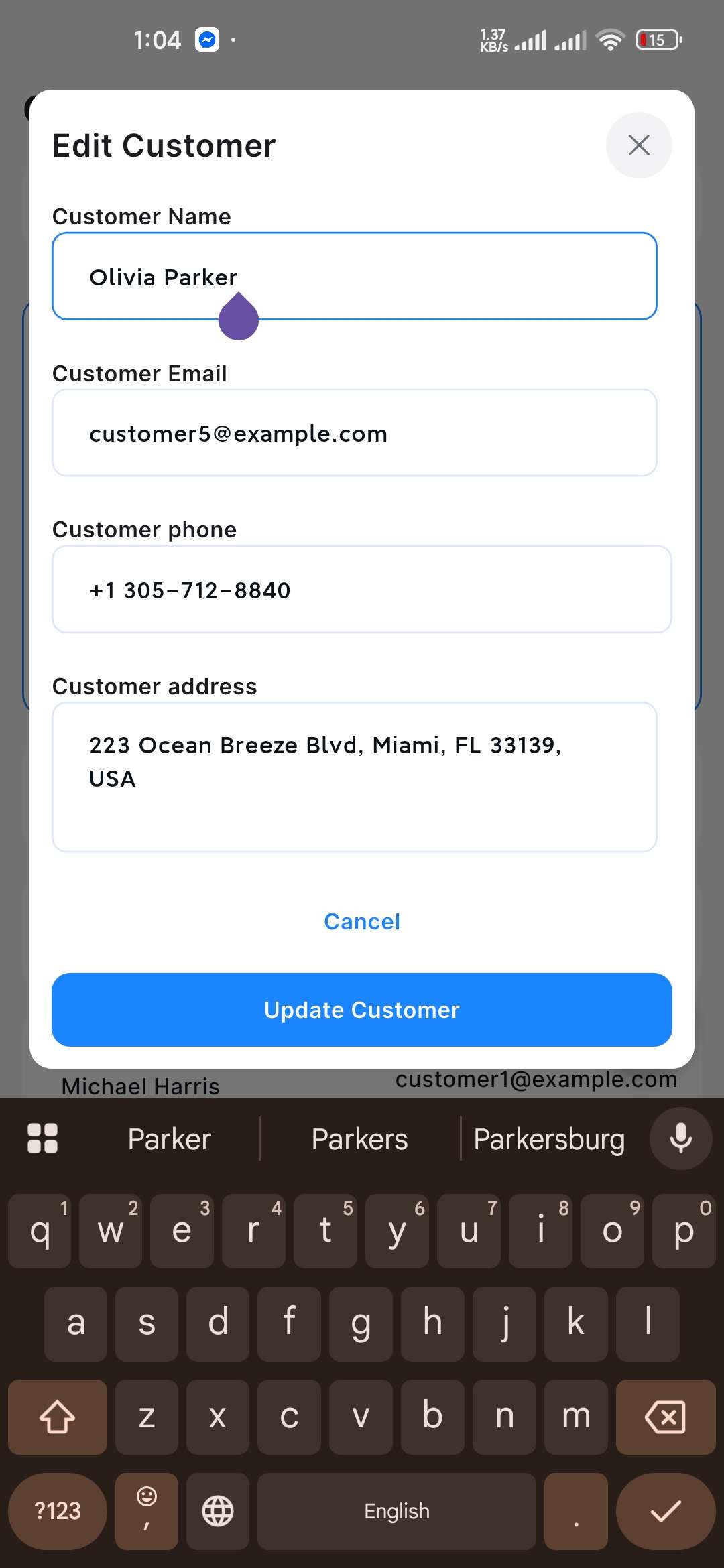
If you click the Edit button, an entry form will appear.
Fill in the following details:
Customer Name: Type the name of the customer in the respective field.
Customer Email: Provide your desired customer email in the respective field.
Customer Phone: Enter the customer's phone in the respective field.
Customer Address: Enter the customer's address in the respective field.
Customer Note: Enter the customer's note in the respective field.
Once all the fields are completed, click the Update Customer button to update the information.
If you click the Delete button, a confirmation window will pop up.
If you click the Confirm button, the respective customer will be automatically deleted; otherwise, click the Cancel button.