
Advice and answers from the Rixbo Team
Click on Rixbo Apps, and a new window will appear.
Click on the Login with Email button, and a new window will appear.
Click on the Log in button, and a new navigation menu will appear.
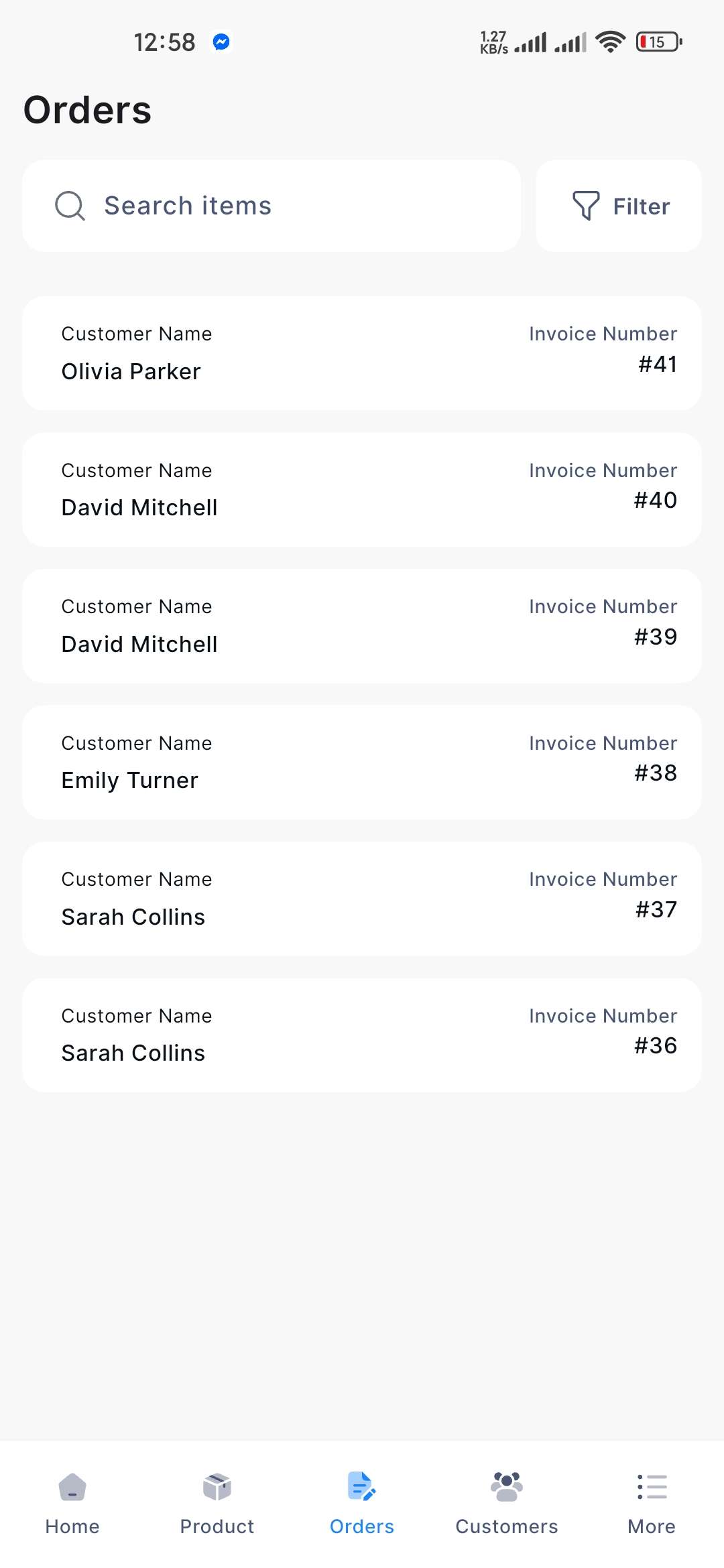
Click on the Orders button from the bottom navigation menu, and a new window will appear, including the orders list.
Click the Search button and type the desired Name to view.
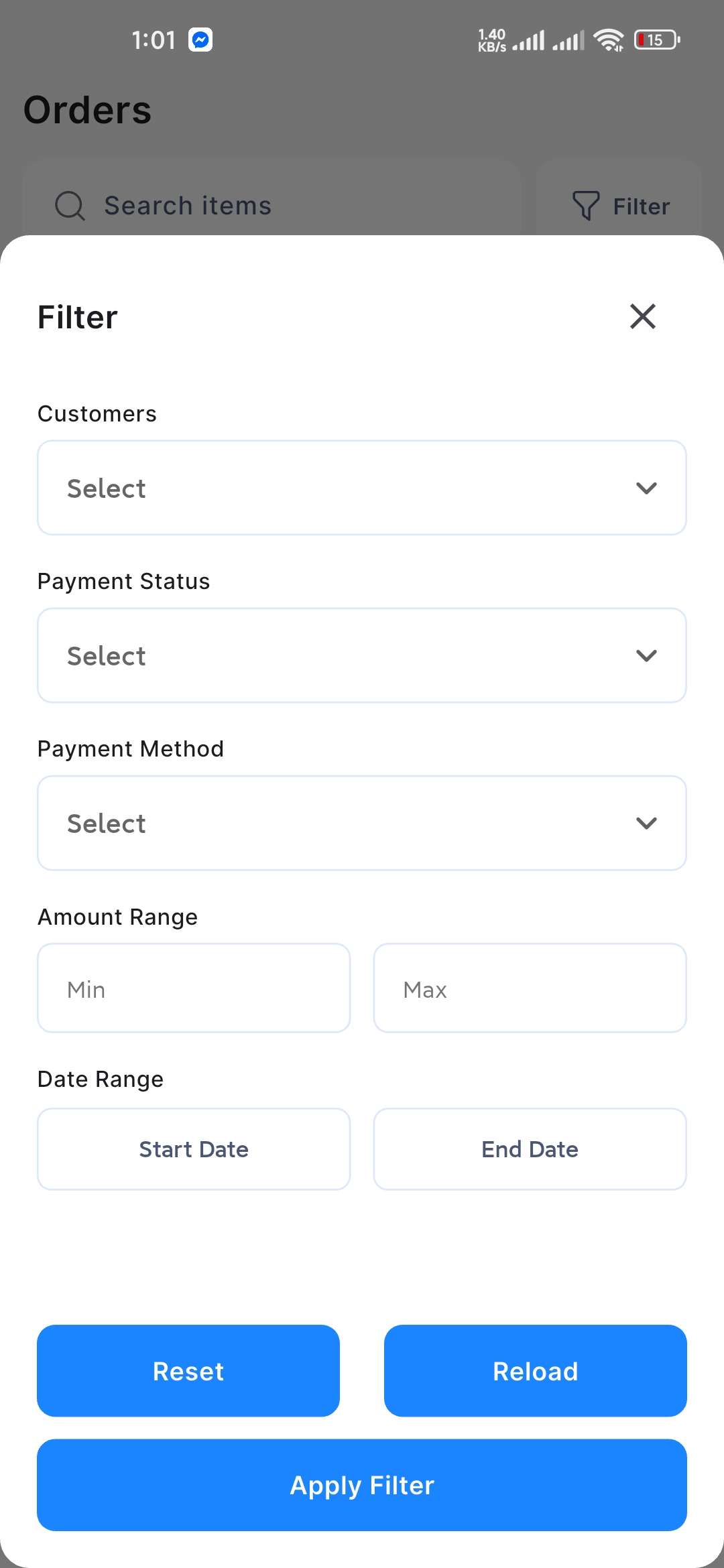
When you click the Filter button, a new window will appear, displaying options to Reset, Reload, and Apply Filter, as well as an entry form.
Fill in the following details:
Customers: Select the customer from the drop-down menu.
Payment Status: Select the payment status from the drop-down menu.
Payment Method: Select the payment method from the drop-down menu.
Amount Range: Put the price range Min. & Max. in the respective field.
Date Range: Click on Start Date to choose the starting date, and click on End Date to select the ending date from the drop-down calendar.
Once all the fields are completed, click the Apply Filter button to display.
If you click the Reset button, the entry page will refresh and return to its original state.
If you click the Reload button, you will automatically be redirected back to the Orders List page.